
How to Use SaleSmartly with WooCommerce: Setup & Automation
Running a WooCommerce store means you’re already leveraging the flexibility of WordPress to sell online. But when customers message you across WhatsApp, Facebook Messenger, Instagram, and live chat, managing those threads separately can quickly become a bottleneck. That’s where SaleSmartly comes in. By integrating SaleSmartly with WooCommerce, you unify every customer interaction into one intelligent workspace – powered by AI – so you can respond faster, automate routine tasks, and convert more visitors into loyal buyers.
In this guide, you’ll learn exactly how to connect SaleSmartly to your WooCommerce site, set up smart automations, and use the platform’s omnichannel capabilities to give your store a competitive edge.
Why Integrate SaleSmartly with Your WooCommerce Store?

How to Use SaleSmartly with WooCommerce: Setup & Automation product interface and feature overview.
WooCommerce is incredibly powerful, but its native communication tools are limited. Customer emails, social DMs, and live chat are separate silos. SaleSmartly bridges those gaps by giving you:
- A single inbox for every channel. Your WooCommerce store’s live chat, along with messages from WhatsApp, Messenger, Instagram, Telegram, Email, and more, all appear in one threaded view.
- AI that handles repetitive work. The SaleSmartly AI agent can answer product FAQ, track orders, recommend upsells based on browsing behavior, and even recover abandoned carts – all without human involvement.
- Automations that increase sales. Trigger WhatsApp reminders when a cart is abandoned, start a chatbot on high-intent pages, or route VIP customers to your top agents automatically.
- Real‑time translation for 134 languages. Serve an international audience without needing a multilingual support team. The chat widget translates incoming messages instantly, and your replies can be sent in the customer’s language.
- Visitor context at your fingertips. SaleSmartly’s CRM shows the customer’s current page, browsing history, and any previous conversations – so you can personalize every interaction.
For WooCommerce merchants who want to scale customer service without scaling headcount, SaleSmartly fills the gap beautifully.
Key Benefits at a Glance

How to Use SaleSmartly with WooCommerce: Setup & Automation product interface and feature overview.
| Business Need | How SaleSmartly + WooCommerce Solves It |
|---|---|
| Fragmented support channels | Omnichannel inbox merges all chats, DMs, and emails. |
| Slow response during high traffic | AI agent answers instantly; chatbots handle common queries 24/7. |
| Abandoned cart recovery | Automated WhatsApp/web chat reminders with discount codes. |
| Selling via social media | Connect Instagram/Facebook DMs; share WooCommerce product links directly. |
| Language barriers | Built‑in real‑time translation for 134 languages. |
| Manual lead qualification | AI can pre‑qualify leads and route high‑intent visitors to sales agents. |
How to Set Up SaleSmartly on WooCommerce

How to Use SaleSmartly with WooCommerce: Setup & Automation product interface and feature overview.
Installation is straightforward. You can choose between a dedicated WordPress plugin, a JavaScript snippet, or a third‑party code manager plugin. All three methods work perfectly with WooCommerce stores.
Prerequisites
- A self‑hosted WordPress site with WooCommerce active (plugin installation may require the WordPress Business plan if you’re on WordPress.com).
- A SaleSmartly account – you can start with the free trial.
- Administrator access to your WordPress dashboard.
Method 1: Install via the Official WordPress Plugin (Recommended)
- Log into your WordPress admin and go to Plugins > Add New.
- Search for “SaleSmartly” and click Install Now.
- Activate the plugin once the installation completes.
- Go to Plugins > Installed Plugins, locate SaleSmartly Chat, and click One‑click Bind.
- You’ll be redirected to the SaleSmartly login page. After logging in, the plugin binds automatically and the chat widget appears on your store.
- Head over to your SaleSmartly dashboard to customize the widget appearance, display rules, and chatbot flows.
For a more detailed walkthrough, check the official SaleSmartly WordPress installation guide.
Method 2: Install via JavaScript Code
If the plugin method fails or you prefer a lightweight approach, you can add the SaleSmartly JavaScript snippet directly to your theme.
- Inside your SaleSmartly dashboard, navigate to Integration > Chat Plugin and click Add. Set a name, choose Others as the website, and copy the generated JavaScript code.
- Back in WordPress, go to Appearance > Theme Editor, select your active theme, and open the Theme Footer (
footer.php) file. - Paste the JavaScript snippet just before the closing
</body>tag and save the file.
The chat widget will now load on every WooCommerce page without requiring a plugin.
Method 3: Using the Header Footer Code Manager Plugin
If you’re on a restricted WordPress plan that doesn’t allow direct theme file editing, or if you’re seeing a fatal error when activating the SaleSmartly plugin, the Header Footer Code Manager plugin is a reliable workaround.
- Install the Header Footer Code Manager plugin from the WordPress repository.
- Go to its settings page and click Add New Snippet.
- Give the snippet a name (e.g., “SaleSmartly Chat”), paste the JavaScript code you copied from SaleSmartly, and set the location to Footer.
- Save the snippet. The chat widget will now appear on your storefront.
Configuring SaleSmartly for Maximum WooCommerce Impact
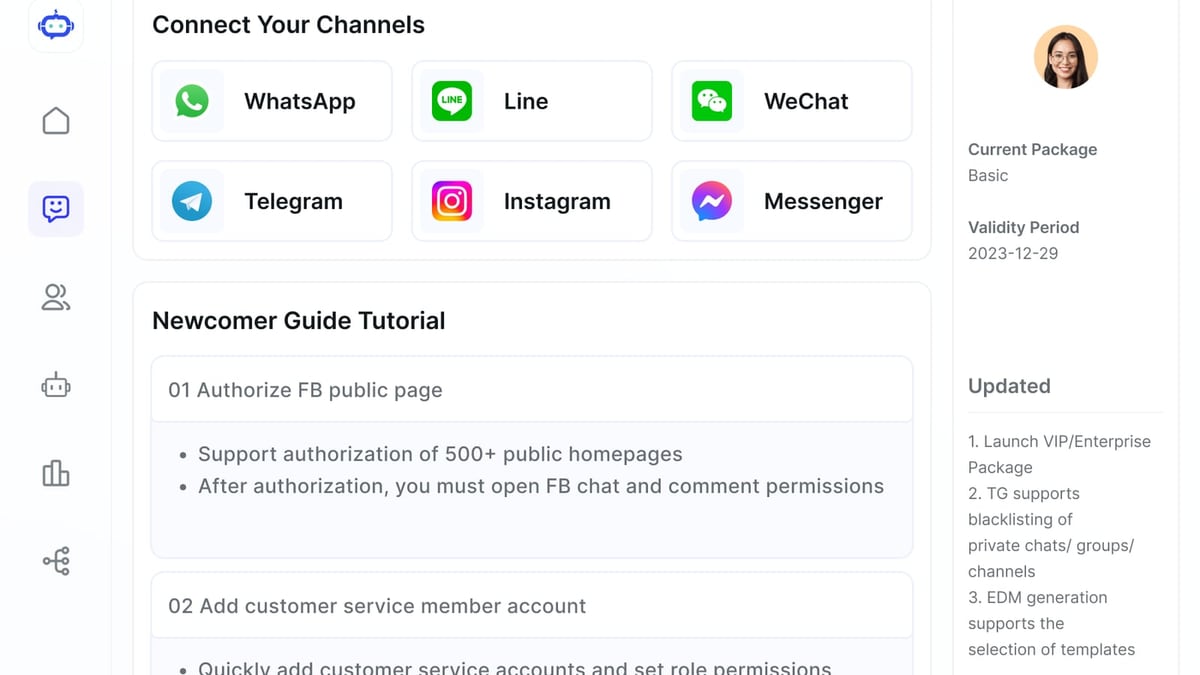
How to Use SaleSmartly with WooCommerce: Setup & Automation product interface and feature overview.
Once the widget is live, the real power comes from tailoring SaleSmartly to your WooCommerce workflows.
Enable the AI Shopping Assistant
SaleSmartly’s AI agent can act as a virtual salesperson. Train it with your product catalog (you can upload CSVs or let it gradually learn from conversations) so it can answer sizing, shipping, and stock questions automatically. Context‑aware replies keep shoppers engaged and reduce drop‑offs on product pages.
If SaleSmartly offers a direct e‑commerce extension in your plan, you may also be able to sync WooCommerce product data and order statuses – check your dashboard’s integration hub.
Connect WhatsApp, Messenger, and Instagram
Add your social business accounts under Channel Management. When a customer sends a WhatsApp or Instagram DM, it lands in the same unified inbox. You can then share WooCommerce product links, process orders, and continue the conversation without switching apps. This effectively turns your WooCommerce store into a social commerce machine.
Automate Abandoned Cart Recovery
SaleSmartly’s automation builder can watch for specific customer behaviors. To recover WooCommerce carts:
- Use SaleSmartly’s “Page View” trigger on the cart page and combine it with a condition that the checkout wasn’t completed.
- After a set delay (e.g., 30 minutes), automatically send a WhatsApp message or web chat reply with a personalised discount code.
You may need to set up custom events through SaleSmartly’s JavaScript API to capture cart actions precisely. The effort pays off – abandoned cart automation can recover 10–15% of lost sales.
Set Up Multi‑Language Support
For international WooCommerce stores, turn on real‑time translation in the SaleSmartly settings. Your team types in their native language; customers see messages in theirs. The AI agent also translates automatically, making 24/7 global support feasible with a small team.
Assign Conversations Based on Product Expertise
Create routing rules within SaleSmartly to send chats from specific WooCommerce categories (detected via URL) to designated agents or teams. For instance, all chats from /product-category/electronics/ can go directly to your tech support group, while clothing inquiries go to fashion specialists.
Practical Example: Boosting Black Friday Sales
Let’s say your WooCommerce store runs a Black Friday campaign. With SaleSmartly in place, your workflow could look like this:
- Smart pop‑up: The chat widget triggers on the homepage with a “Flash Sale – Get 20% Off Now” button, capturing leads.
- Instant product advice: The AI agent handles hundreds of simultaneous sizing and shipping queries without any wait time.
- WhatsApp cart recovery: Visitors who add items to cart but leave are sent a WhatsApp message with a time‑limited coupon, pulling them back.
- Social DMs unified: Instagram promo messages flood in, but your team answers them from the same inbox, viewing the customer’s browsing history on your WooCommerce store.
Result: higher conversion rate, lower cart abandonment, and a support team that never feels overwhelmed.
Related reading
- SaleSmartly vs Tidio vs Respond.io: AI Chat Platforms Compared - Compare SaleSmartly, Tidio, and Respond.io on omnichannel messaging, AI agents, CRM, and analytics. Find the best AI conversation platform for your business.
- Respond.io Review: AI-Powered Conversation Software (2026) - In-depth Respond.io review covering AI agents, omnichannel inbox, pricing, pros/cons from G2 & Capterra. See if it’s right for your B2C business in 2026.
- IBM watsonx Review: Enterprise AI Platform for 2026 - Explore our in-depth IBM watsonx review covering features, governance, pricing signals, user feedback, and ideal use cases to decide if it fits your enterprise AI needs.
Sources and further reading
- SaleSmartly Introduction - Discover SaleSmartly's all-in-one customer engagement platform! Streamline live chat, AI automation, and omnichannel support for e-commerce and service teams. Watch the demo now!
- SaleSmartly Chat | BigCommerce Integrations - Learn more about SaleSmartly Chat integrations available on BigCommerce.
FAQ
Is there a direct WooCommerce integration in SaleSmartly? While the primary connection is through the WordPress plugin, SaleSmartly’s “smart shopping assistant” features can be tailored to WooCommerce. Some advanced e‑commerce data sync (order history, product catalog) may be available through SaleSmartly’s Enterprise plan or via Zapier/API connections. Head to your SaleSmartly dashboard’s integration section to see the latest options.
Does the SaleSmartly chat widget slow down my WooCommerce store? No. The JavaScript script loads asynchronously and is optimized for performance. The impact on Core Web Vitals is negligible.
Can I use SaleSmartly for free with WooCommerce? Yes, SaleSmartly has a free plan that includes basic live chat and limited omnichannel capabilities. To unlock AI automation, full omnichannel inbox, and advanced analytics, you’ll need a paid subscription.
Will customers see their WooCommerce order details inside the chat? Out of the box, order data isn’t embedded in the chat. However, your agents can manually ask for an order ID and look it up. For a seamless experience, you can explore middleware tools like Zapier to push WooCommerce order events into SaleSmartly, or use SaleSmartly’s custom app framework to build a tight integration.
Conclusion
Combining SaleSmartly with WooCommerce turns a basic online store into a customer engagement powerhouse. You eliminate channel silos, let AI handle routine questions, and automate the kind of personalized follow‑ups that drive repeat business. The installation is simple – whether through the dedicated plugin or a quick JavaScript addition – and the configuration options give you room to grow.
For tracking how SaleSmartly impacts your sales, don’t miss our guide on connecting SaleSmartly to Google Analytics. And if you’re still weighing which customer communication platform best fits your WooCommerce store, our SaleSmartly vs SleekFlow vs tawk.to comparison breaks down the differences in detail.
At SaleSmartly, we’re dedicated to giving you practical, actionable advice for smarter business tools – so you can spend less time juggling tabs and more time growing your store.