
How to Use SaleSmartly with Google Analytics: Track Every Message & Conversion
Connecting SaleSmartly with Google Analytics bridges the gap between conversation and data. You stop guessing which chat channels drive revenue and start seeing exactly how customer interactions influence sales, tickets, and retention. In this guide, you’ll learn why the integration matters, how to set it up in minutes, which events to track, and how to turn the data into actionable insights.
Why Connect SaleSmartly to Google Analytics?

How to Use SaleSmartly with Google Analytics (Integration Guide) product interface and feature overview.
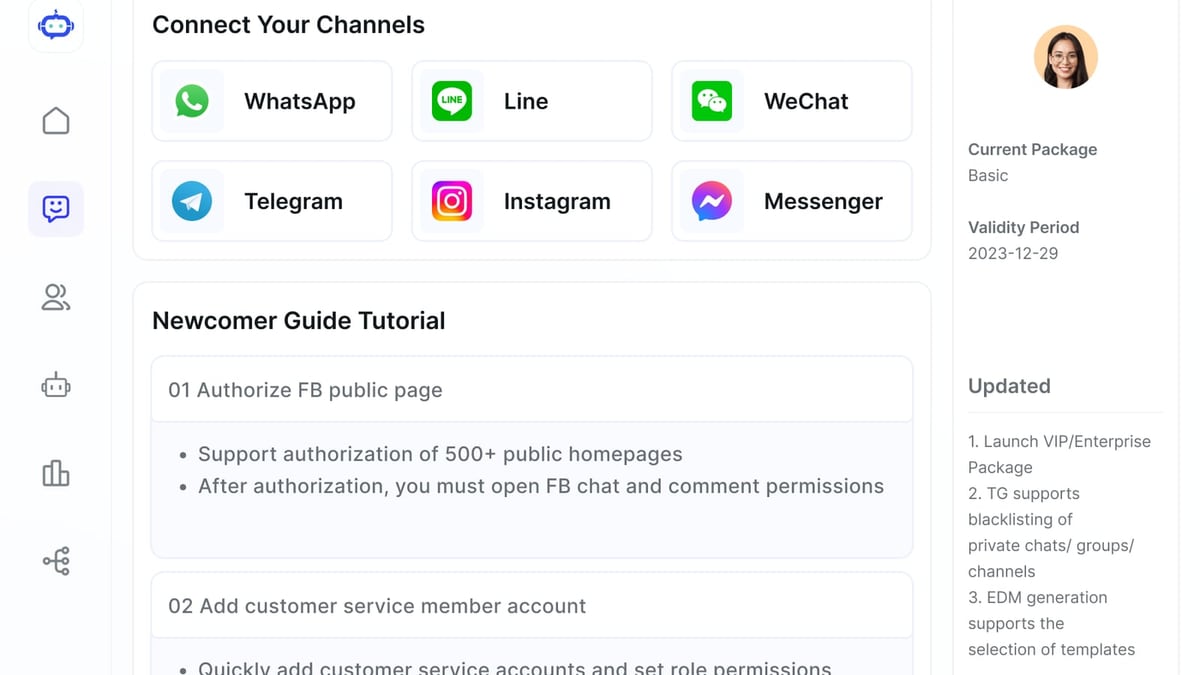
SaleSmartly unifies messages from WhatsApp, Facebook Messenger, Instagram, Telegram, Email, and more into a single inbox. Google Analytics (GA4) captures every page view, session, and conversion on your website. By linking them, you get a unified view of:
- Chat-driven conversions: Which conversations lead directly to a purchase or lead form submission.
- Channel performance: How WhatsApp compares to live chat in average order value or ticket resolution time.
- Customer journey clarity: Where users engage before and after a chat—and whether the chat improves the experience.
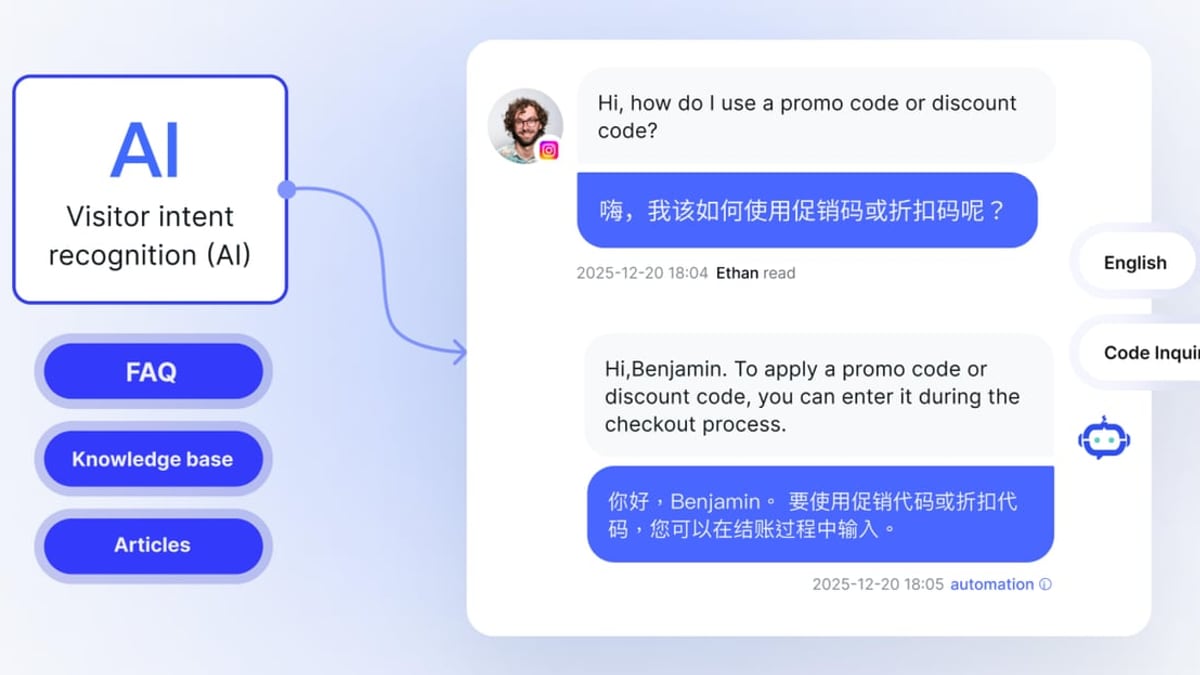
- AI agent effectiveness: Measurement of how often SaleSmartly’s AI agent resolves issues or nudges a shopper toward checkout.
Without this integration, your team remains blind to the true ROI of omnichannel support and conversational marketing. With it, you can optimize chatbot scripts, allocate agents by peak chat hours, and justify investment in the channels that convert.
Prerequisites

How to Use SaleSmartly with Google Analytics (Integration Guide) product interface and feature overview.
Before you begin, make sure you have:
- A SaleSmartly account with the tracking script already installed on your website.
- A Google Analytics 4 (GA4) property with a web data stream. (Universal Analytics properties won’t work with this setup.)
- The gtag.js global site tag present on every page where SaleSmartly runs. If you already load the GA4 tag via Google Tag Manager or a plugin, you can skip this step—the gtag object is available automatically.
Step-by-Step Setup: Send SaleSmartly Events to GA4
How to Use SaleSmartly with Google Analytics (Integration Guide) product interface and feature overview.
1. Locate (or Install) Your GA4 Global Site Tag
If your site doesn’t yet have the gtag.js snippet, grab it from your GA4 admin:
- Go to Admin > Data Streams and select your web stream.
- Under Tagging Instructions, copy the global site tag—a block of code that starts with
<script async src="https://www.googletagmanager.com/gtag/js?id=G-XXXXXXX">. - Paste it into the
<head>section of every page, right before the closing</head>tag.
If you’re already using the gtag snippet, you’re ready to go.
2. Add the SaleSmartly Code Snippet
Ensure the SaleSmartly project script loads on your site. It usually looks like:
<script src="https://assets.salesmartly.com/js/project_xxxxxx.js"></script>
Confirm it’s present—most users place it right after the gtag snippet.
3. Fire Custom Events with JavaScript
The core of the integration is the ssq.push('onSendMessage', ...) API. This callback fires when a visitor sends a message. You can wrap a gtag event inside it to push data to GA4.
Here’s a basic example that fires a chat_started event the first time someone messages:
<script>
  let chatStarted = false;
  ssq.push('onSendMessage', function(obj) {
    if (!chatStarted) {
      chatStarted = true;
      gtag('event', 'chat_started', {
        'event_category': 'chat',
        'event_label': 'Salesmartly chat started'
      });
    }
  });
</script>
This code lives on the same page where SaleSmartly loads. It tracks the very first message per session—perfect for measuring engagement initiation.
Expanding the script: Track multiple milestones
You’re not limited to chat_started. With a few tweaks you can capture:
- Chat ended: Trigger when a visitor closes the chat window or an agent ends the conversation.
- Ticket created: Fire an event when
ssq.push('onCreateTicket', ...)runs. - AI agent handoff: Record when a conversation moves from the AI agent to a human.
- Conversion milestones: Fire a
purchase_with_chatevent when a user completes a purchase within X seconds after a chat interaction (using a timestamp difference).
Here’s a snippet that sends a ticket_created event:
<script>
  ssq.push('onCreateTicket', function(ticketData) {
    gtag('event', 'ticket_created', {
      'event_category': 'support',
      'event_label': 'New ticket from chat'
    });
  });
</script>
Check SaleSmartly’s official developer documentation for the full list of callbacks, including onSendMessage, onOpen, onClose, and onCreateTicket.
4. View Your Events in GA4
After a few hours of traffic, navigate to Reports > Engagement > Events in GA4. You’ll see your custom events (like chat_started) appear in the list. To use them as conversions:
- Go to Admin > Events and toggle the switch next to your event name to mark it as a conversion.
- Then visit Reports > Engagement > Conversions to monitor chat-driven goals.
You can also build custom explorations in the Explore tab to segment users who started a chat vs. those who didn’t, and compare their purchase rates.
Practical Examples of Events Worth Tracking
How to Use SaleSmartly with Google Analytics (Integration Guide) product interface and feature overview.
Example 1: E-commerce Store Measuring WhatsApp ROI
An online fashion retailer runs WhatsApp conversations through SaleSmartly. They want to know if a chat started via a WhatsApp click-to-chat button on a product page increases the chance of a purchase. They add:
<script>
  let chatStarted = false;
  let sessionChatTime = null;
  ssq.push('onSendMessage', function() {
    if (!chatStarted) {
      chatStarted = true;
      sessionChatTime = new Date().getTime();
      gtag('event', 'whatsapp_chat_start', {
        'source': 'whatsapp'
      });
    }
  });
</script>
Then, on the order confirmation page, they fire a custom purchase event that includes a flag if the chat started in the last 30 minutes. The shop reports in GA4: “Users who start a WhatsApp chat have a 40% higher conversion rate than those who only browse.”
Example 2: B2B SaaS Tracking Lead From Chat Tickets
A SaaS company uses SaleSmartly’s live chat to qualify leads. Every time a visitor submits their email during a chat, a ticket is created. By tracking ticket_created events and then the sign_up event (already tracked in GA4), they can see:
- Number of tickets that converted to sign-ups within 7 days.
- Average deal size for ticket-involved vs. self-service sign-ups.
This insight lets the sales team prioritize live chat during business hours and scale AI agents for after-hours qualification.
Analyzing Chat-Driven Conversions in GA4
Once your events flow, dive into a few key reports:
- Events: Sort by
Event countforchat_started,ticket_created, etc. - Conversions: See how many times a chat interaction preceded a purchase or lead form (if you’ve toggled those events as conversions).
- Explore – Path exploration: Start with
chat_startedas the step and see the most common next page views or actions. - Ad-hoc segment: Create a segment of users who triggered a
chat_startedevent and compare their average order value, session duration, and bounce rate against all users.
Pro tip: Combine SaleSmartly’s own analytics dashboard (which shows agent performance, response times, and channel volumes) with GA4’s attribution data. SaleSmartly tells you what happened inside the conversation; GA4 tells you what surrounded it.
Real-World Use Cases
- Multilingual support teams use SaleSmartly’s real-time translation and track whether translated chats lead to higher satisfaction, then correlate with GA4’s ecommerce conversion rates per language.
- Click to Message ad campaigns (Facebook, Instagram) feed into SaleSmartly. By tagging those chats with a UTM parameter and tracking subsequent events, you can close the loop on ad spend ROI directly in GA4.
- AI agent optimization: A/B test different chatbot greetings. Use GA4’s event labels to distinguish variants (
greeting_Avs.greeting_B) and see which one produces morechat_startedevents and downstream transactions.
Related reading
- DelightChat Review: Omnichannel Support & WhatsApp Marketing - Unbiased DelightChat review for Shopify stores. Explore AI inbox, WhatsApp marketing, pricing from $29/mo, real user ratings 4.8/5, and verdict for D2C brands.
- Top 10 Social Media Advertising Platforms 2026: Expert Review & Comparison - Find the best social media ad platforms of 2026. We compare Meta, TikTok, LinkedIn & more with transparent criteria, pros, cons & updated features.
Sources and further reading
- SaleSmartly-Help Center-SaleSmartly User Guide - Provide users with online documentation of SaleSmartly software usage guides and FAQs to help users understand and use the functions and features of the software faster and better, and improve user satisfaction and loyalty.
- Google Analytics Transactions: How to Track + Get More Sales - How to track ecommerce transactions in Google Analytics and increase the volume and value of transactions by spotting bugs and improving website UX.
Frequently Asked Questions
How do I send SaleSmartly events to Google Analytics without editing code?
You can use Google Tag Manager to listen for custom JavaScript variables pushed by SaleSmartly, but the cleanest method is the inline ssq.push approach shown above. It requires adding a small script once.
Do I need to re-add the tracking code if I change my GA4 measurement ID?
Only if your gtag snippet changes. The SaleSmartly ssq.push calls will still work because they reference the global gtag object, which picks up the latest measurement ID automatically.
Can I track sales that happen offline after a chat?
Yes, if your CRM syncs back. For example, when a SaleSmartly ticket results in a call-back and later a sale, you can fire a chat_offline_conversion event from your backend using the Measurement Protocol and the GA4 client ID.
Is the integration affected by SaleSmartly’s ISO 27001 certifications?
No. Event data sent to GA4 via gtag is standard analytics data and doesn’t include chat content. SaleSmartly’s security certifications cover message storage and processing on its platform, not the GA4 side.
What if I use multiple chat platforms? Can I compare them?
If you use SaleSmartly alongside other tools, you can set a different event category or label for each platform. However, SaleSmartly’s omnichannel inbox already consolidates all channels, so this integration gives you a unified view without extra complexity.
Connect the Dots Between Conversations and Conversions
Blending SaleSmartly’s omnichannel messaging with Google Analytics removes guesswork and reveals exactly how chat interactions influence business outcomes. A few lines of JavaScript get you started; the real power lies in acting on the data—adjusting AI flows, staffing, and channel mix based on what truly works.
If you’re still deciding which customer engagement platform fits your stack, take a look at our detailed comparison of SaleSmartly vs SleekFlow vs tawk.to to see how integration depth and analytics capabilities stack up. For a more focused look at alternatives, our Olark review explores live chat strengths that might complement your GA4 data.
Ready to make every chat count? Start sending events today and watch your analytics tell the full story.