
How to Use SaleSmartly with Zapier: A No-Code Guide
SaleSmartly brings all your cross‑border customer messages—from WhatsApp and Facebook Messenger to Telegram, LINE, and email—into one AI‑powered inbox. Zapier connects over 9,000 business apps without a line of code. When you combine them, you turn real‑time conversations into instant actions that your team and other tools can act on. Although SaleSmartly isn’t yet in Zapier’s app directory, you can still link both platforms in minutes using webhooks. This guide shows you exactly how, with practical workflows that solve the biggest headache in omnichannel support: scattered data and slow follow‑ups.
Why Integrate SaleSmartly with Zapier?

How to Use SaleSmartly with Zapier: A No-Code Guide product interface and feature overview.
Manual hopping between chat tools, CRMs, spreadsheets, and email drains your team’s speed and lets leads go cold. Connecting SaleSmartly with Zapier solves these specific problems:
- Fragmented customer data – Every chat, lead, and support ticket stays siloed unless you manually copy information. Automating the flow keeps your CRM and marketing apps up‑to‑date the moment a conversation starts.
- Slow follow‑up – When a high‑intent message arrives on Instagram or WhatsApp, minutes matter. A Zap can instantly alert a Slack channel or create a task, so no opportunity slips.
- Manual reporting – Instead of exporting chat logs, push conversation data into Google Sheets, Notion, or a data warehouse for real‑time analytics.
Zapier’s own guide to AI‑powered sales automation highlights how connecting chat and CRM tools can significantly boost response rates. SaleSmartly’s omnichannel AI agents and real‑time 134‑language translation make it a perfect trigger or destination for those same workflows.
Two Ways to Connect SaleSmartly and Zapier

How to Use SaleSmartly with Zapier: A No-Code Guide product interface and feature overview.
Because SaleSmartly doesn’t appear in Zapier’s app directory (yet), you’ll use a flexible workaround. Pick the method that matches your automation direction.
Method 1: Sending SaleSmartly Events to Zapier via Webhooks
This is the most common path. When an event happens inside SaleSmartly—a new conversation, a specific tag, a handover—you fire an outgoing webhook that Zapier catches and turns into actions. The entire setup is point‑and‑click, and you’ll only touch a few configuration fields.
What you need:
- A SaleSmartly account (any plan that includes automation rules)
- A Zapier account (free or paid)
- The target app you want to send data to (Slack, HubSpot, Google Sheets, etc.)
Method 2: Triggering SaleSmartly Actions from Zapier
If you need to create a contact, assign a conversation, or send a message in SaleSmartly based on something that happens in another app, you can use Zapier’s Webhooks by Zapier action step to call SaleSmartly’s API directly. You’ll need an API key from your SaleSmartly account and the endpoint documentation. This gives you full control but requires slightly more technical setup.
Tip: Start with Method 1. It covers 80% of real‑world use cases without touching an API key.
Step‑by‑Step Setup: Send New SaleSmartly Messages to Slack
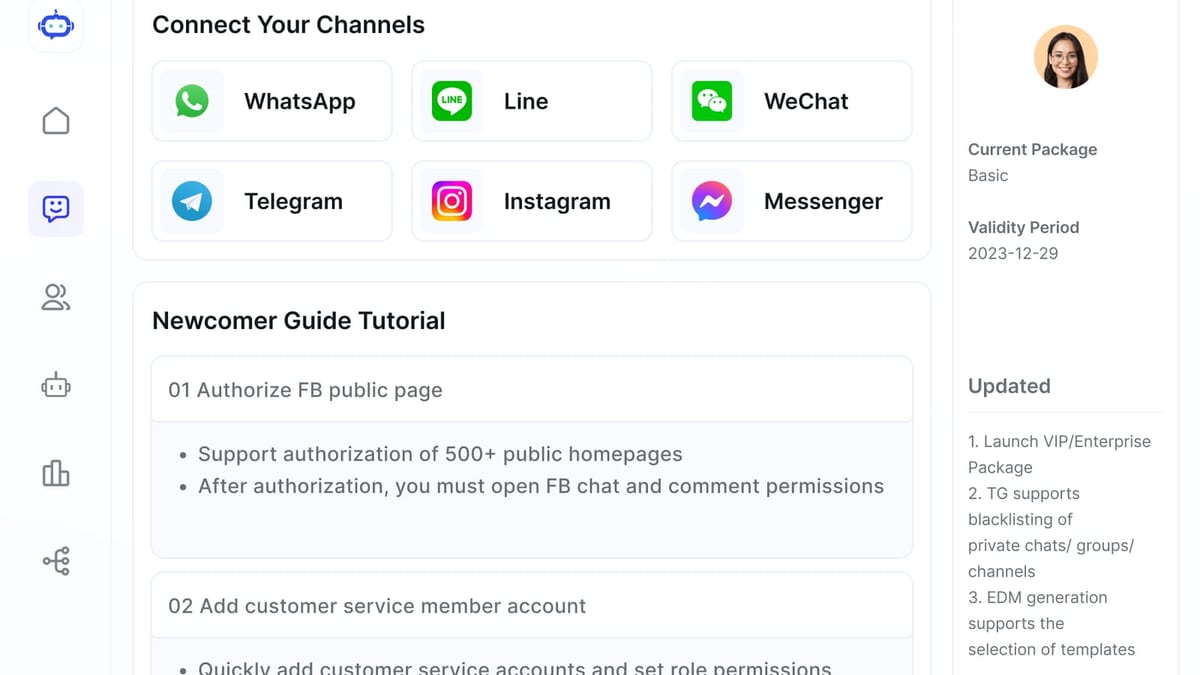
How to Use SaleSmartly with Zapier: A No-Code Guide product interface and feature overview.
Let’s walk through a concrete example. By the end, every new incoming message in SaleSmartly will instantly appear in a specified Slack channel—perfect for keeping a remote team in the loop.
Prerequisites
- SaleSmartly workspace with at least one channel connected (e.g., WhatsApp or Facebook Messenger)
- A Zapier account and a Slack workspace where you can add apps
Create a webhook trigger in SaleSmartly
- Log into SaleSmartly and navigate to Automation > Rules.
- Click + Create Rule, give it a name (e.g., “Slack Alert – New Message”).
- Set the trigger condition: Event → “New Message” (or choose a specific channel if you prefer).
- Add an action: Send Webhook.
- Leave the URL field empty for now; we’ll come back.
- Choose the content you want to include (the full message payload, sender name, channel, text, etc.).
- Save the rule.
Build the Zapier webhook trigger
- In Zapier, click Create Zap.
- Search for the Webhooks by Zapier app and choose the Catch Hook trigger.
- Click Continue; Zapier will generate a unique webhook URL.
- Copy this URL.
Finish the SaleSmartly webhook
- Return to your SaleSmartly rule and paste the Zapier URL into the webhook action field.
- Save the rule again. SaleSmartly will now fire the webhook whenever the trigger condition is met.
Test the trigger in Zapier
- With the Zap editor still open, send a test message to one of your connected SaleSmartly channels (e.g., a WhatsApp message).
- In Zapier, click Test trigger. It should find the payload from your test message. If it does, you’ll see fields like
senderName,messageContent,channelType.
Add the Slack action
- Click the + button to add an action step. Search for Slack and choose the Send Channel Message action.
- Connect your Slack account.
- Select the channel where messages should appear.
- Compose the message text using the data from Step 4, for example:
New message from on :
Test and turn on your Zap
- Click Test & Review. Slack should receive a sample message.
- If everything looks good, turn on the Zap. From now on, every new SaleSmartly message will ping your team in real time.
The same pattern works for dozens of destinations: add a Google Sheets row to log chats, create a Trello card for high‑priority issues, or subscribe a contact to a Mailchimp audience.
Practical Workflow Ideas for SaleSmartly + Zapier

How to Use SaleSmartly with Zapier: A No-Code Guide product interface and feature overview.
Once you master the webhook connection, you can automate much more than notifications. Here are four powerful workflows that are easy to implement.
Lead capture to CRM
When a new conversation starts in SaleSmartly (especially from a WhatsApp click‑to‑chat ad or Facebook Messenger), automatically create or update a contact in HubSpot, Salesforce, or Pipedrive. If you’re evaluating CRMs, see our SaleSmartly vs HubSpot vs Intercom comparison for context on which platform gels best with SaleSmartly’s omnichannel AI.Chat logs to Google Sheets for analytics
Collect every incoming message—or only those with specific tags, like “complaint” or “hot lead”—into a spreadsheet. Add timestamp, channel, and the AI‑generated language translation. This builds a searchable archive for quality assurance and trend analysis without exporting reports manually.Email alert for VIP customers
When SaleSmartly recognizes a customer tag like “VIP” or “high contract value,” the Zap can send a personalized Gmail draft to a dedicated sales rep, complete with the customer’s message and a link to the conversation. This shortens reaction time for your most valuable accounts.Create Help Scout tickets from SaleSmartly
For complex issues that need ticket tracking, route messages automatically to Help Scout, Zendesk, or Jira based on keywords or customer attributes. The support team can work in their familiar tool while SaleSmartly keeps the omnichannel conversation alive.
If your automation needs lean toward social ads, check out our step‑by‑step guide for using SaleSmartly with Meta for Business. It shows how to combine ad‑triggered conversations with automated messaging.
You can even add intelligence layers. Zapier’s AI features let you insert an AI step—for example, to summarize a long chat or detect sentiment—before storing the data. SaleSmartly’s own AI agents handle frontline responses, and Zapier can drive the next actions based on those outcomes.
Comparison: Native Integration vs. Webhook Workaround
You might wonder whether to wait for SaleSmartly to publish a native Zapier app. Here’s a quick comparison to help you decide.
| Criteria | Native Integration | Webhook Workaround | | --- | --- | | Ease of setup | One‑click authentication; pre‑built triggers and actions | Requires configuring a webhook and mapping fields; takes about 10 minutes | | Flexibility | Limited to the events the developer exposed | You can send any custom payload that SaleSmartly’s webhook supports; fully customizable | | Maintenance | Handled by the integration developer; updates can break Zaps | You control the field mapping; if SaleSmartly updates its webhook format, you adjust | | Speed to availability | Dependent on partner development and Zapier review | Available today, right after you set up the rule |
As of now, no official SaleSmartly integration exists in the Zapier marketplace. However, the webhook method gives you all the connectivity you need without waiting. Keep an eye on SaleSmartly’s roadmap—when a native app launches, you can seamlessly migrate your logic.
Related reading
- SaleSmartly vs tawk.to: Omnichannel AI vs Free Live Chat Compared - Comparing SaleSmartly's omnichannel AI customer service and marketing platform with tawk.to's free live chat. Discover which tool fits your cross-border business needs, from WhatsApp integration to AI agents.
- Tidio Review 2025: AI Chat & Help Desk Tested - Our hands-on Tidio review covers Lyro AI agent, live chat, help desk, pricing, and real-world results. See if Tidio fits your ecommerce or small business support needs.
- Top 10 Enterprise AI Platforms 2026: Expert Picks & Reviews - Compare the 10 best enterprise AI platforms of 2026. We rate Microsoft Azure AI, Google Vertex AI, IBM watsonx, DataRobot, and more on governance, scalability, and features.
Sources and further reading
- Build your first public integration on Zapier - Zapier - This guide gives an overview of the process to publishing a public integration.
Frequently Asked Questions
Is there an official SaleSmartly integration on Zapier?
Not yet. SaleSmartly is not listed in the Zapier app directory at the time of writing. You can still connect the two platforms using the webhook approach described above, which works reliably for triggers and API calls.
Can I automate WhatsApp messages from SaleSmartly to my CRM using Zapier?
Yes. Whenever a WhatsApp message arrives in SaleSmartly, the webhook can deliver the contact details and message text to Zapier. From there, you can create or update a lead in almost any CRM, including HubSpot, Pipedrive, and Salesforce. The process is the same as the Slack example but with a CRM action step.
Do I need coding skills to set this up?
No. Zapier’s Catch Hook trigger and SaleSmartly’s no‑code webhook action are point‑and‑click. You’ll only need to copy‑paste a URL and use a simple field mapper. If you choose Method 2 (calling SaleSmartly’s API from Zapier), you may need to follow API documentation, but the most popular use cases are covered by the webhook‑trigger method.
How do I handle SaleSmartly’s AI chatbot replies in Zaps?
By default, the webhook can be configured to fire on messages from any sender, whether human or AI agent. If you want to trigger Zaps only for human‑to‑human conversations or only when a bot hands off to a live agent, use SaleSmartly’s automation conditions to filter by sender role or event type before sending the webhook.
Conclusion
Connecting SaleSmartly to Zapier tears down the walls between your customer conversations and the rest of your stack. With a short webhook setup, you can capture every chat, route leads to the right CRM, and alert your team instantly—all without writing a line of code. The result is a more responsive sales and support engine that scales with your cross‑border business.
For more strategies on picking and integrating omnichannel AI tools, explore SaleSmartly’ in‑depth comparisons and guides. Start with the webhook example above, then build your own Zaps tailored to the channels your customers really use.